Remote COntroller
Channel Mapping
- Pilot Sticks:
The channel mapping for controlling roll, pitch, throttle, and yaw can be configured here.
Web Interface: Settings > Commander > Remote Controller > Channel Mapping > Pilot Sticks
- Flight Mode Switch 1:
The flight mode selection function for the first switch should be configured with a channel corresponding to a three-way switch.
- Low (Negative position)
- Centre (Zero position)
- High (Positive position)
The flight mode corresponding to the active position of this switch is considered as the initial mode upon arming. If the current position of switch 1 is not assigned to a mode, the flight mode corresponding to switch 2's active position is used.
Web Interface: Settings > Commander > Remote Controller > Channel Mapping > Flight Mode Switch 1
- Flight Mode Switch 2:
The flight mode selection function for the second switch should be configured with a channel corresponding to a three-way switch.
- Low (Negative position)
- Centre (Zero position)
- High (Positive position)
Web Interface: Settings > Commander > Remote Controller > Channel Mapping > Flight Mode Switch 2
- Arm Switch:
The arm switch configuration is detailed in this section. It can be mapped to either a two-way or a three-way switch.
- Positive: Arm.
- Negative / Zero: Disarm.
Web Interface: Settings > Commander > Remote Controller > Channel Mapping > Arm Switch
- Kill Switch:
The configuration for the kill switch, which forcefully shuts off the input signal to the motors, can be found here. It can be mapped to either a two-way or a three-way switch.
- Positive: Kill disabled.
- Negative / Zero: Kill enabled.
To be able to arm the drone, the kill switch has to be disabled.
Web Interface: Settings > Commander > Remote Controller > Channel Mapping > Kill Switch
- Algorithm Switch:
This switch is used to select the desired control algorithm between PID and INDI. It can be mapped to either a two-way or a three-way switch.
- Positive: INDI.
- Negative / Zero: PID.
Web Interface: Settings > Commander > Remote Controller > Channel Mapping > Algorithm Switch
Stick Limits
- Upward Throttle Limits:
These settings define the minimum and maximum throttle values mapped to the throttle stick.
Web Interface: Settings > Commander > Remote Controller > Upwards Throttle Limits
- Bank Angle Limit:
The maximum bank angle limit is defined here, allowing users to set limitations on how much the drone may bank during flight for full stick deflection. This setting helps maintain stability and control during maneuvers.
Web Interface: Settings > Commander > Remote Controller > Bank Angle Limit
- Yaw Rate Limit:
This parameter determines the maximum rate of rotation around the vertical axis (yaw) for the drone for full stick deflection.
Web Interface: Settings > Commander > Remote Controller > Yaw Rate Limit
- Vertical Velocity Limits:
These settings define the minimum and maximum vertical velocities achievable by the drone during ascent and descent for full stick deflections. Adjusting these values can affect the drone's climbing and descending speeds.
Web Interface: Settings > Commander > Remote Controller > Vertical Velocity Limits
- Horizontal Velocity Limits:
Here, users can define the maximum horizontal velocity that the drone can achieve during lateral movements for full stick deflection. Controlling horizontal velocity allows for smooth and controlled flight.
Web Interface: Settings > Commander > Remote Controller > Horizontal Velocity Limits
- Deadzone: The deadzone area setting allows users to set a range in which small stick movements on the remote controller have no effect on the drone's movement. This helps prevent unintentional responses to minor stick inputs.
Web Interface: Settings > Commander > Remote Controller > Deadzone
Stick Sensitivity
Stick sensitivity refers to the degree of responsiveness exhibited by the remote controller's sticks, particularly the pitch, roll, yaw, and throttle inputs. It determines how the drone reacts to your control inputs and affects the drone's agility and maneuverability.
In the Reflex, stick sensitivity can often be adjusted through the web-interface, enabling you to fine-tune the controls to suit your flying style and requirements.
Web Interface: Settings > Commander > Remote Controller > Stick Sensitivity
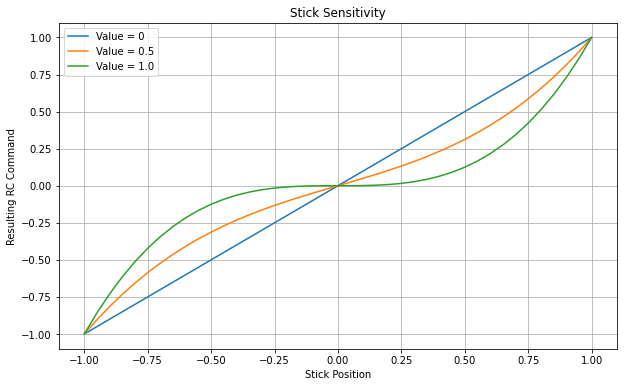
To make stick sensitivity adjustments effective for the throttle stick, it's essential to configure the hover throttle setting. This setting determines the throttle level at which the drone remains in a stable hovering position. Refer Hover Characteristics
Web Interface: Settings > Commander > Hover Characteristics > Hover Throttle
Velocity Smoothing:
For flight modes that rely on roll and pitch stick inputs to command velocity, it's feasible to refine the generated setpoint by implementing acceleration and jerk constraints on the stick commands. This approach enhances the precision and control of velocity adjustments during flight, resulting in smoother and more controlled movements.
Web Interface: Settings > Commander > Remote Controller > Smooth Velocity
Make small adjustments to the acceleration and jerk settings. If you're flying and notice that the drone's movements are too abrupt or jerky, reduce both acceleration and jerk slightly. On the other hand, if you feel the movements are sluggish or not responsive enough, increase these settings slightly.